# Konfigurasi Open VPN Server Mikrotik Dengan Mikrotik
Tujuan : agar client terhubung secara lokal pada jaringan 192.168.80.0/24
**1. Informasi Sistem**
- Router: **MikroTik RouterOS**
- VPN Protocol: **OpenVPN**
- LAN Server: 192.168.80.0/24
- Gateway LAN: 192.168.80.1
- Subnet VPN: 10.10.10.0/24
- Port OVPN: 1194 (TCP)
**2. Pembuatan Sertifikat di MikroTik**
**2.1 Buat CA (Certificate Authority)**
Buka terminal mikrotik:
`/certificateadd name=ca-template common-name=MyCA key-usage=key-cert-sign,crl-signsign ca-template name=MyCA`
Cek status Pastikan CA statusnya: `trusted=yes`
`/certificate print`
Jika belum:
`/certificate set MyCA trusted=yes`
**2.2 Buat Sertifikat Server**
`/certificateadd name=server-template common-name=ovpn-serversign server-template ca=MyCA name=ovpn-server`
`/certificate set ovpn-server trusted=yes`
**2.3 Buat Sertifikat Client**
`/certificateadd name=client1-template common-name=client1sign client1-template ca=MyCA name=client1`
**2.4 Export Sertifikat ke Client**
`/certificate export-certificate client1 export-passphrase=1234/certificate export-certificate MyCA`
File yang akan muncul di Files:
- client1.crt
- client1.key
- MyCA.crt
Download file tersebut ke PC client.
**3. Konfigurasi OVPN Server**
**3.1 Buat IP Pool**
`/ip pooladd name=ovpn-pool ranges=10.10.10.10-10.10.10.50`
**3.2 Buat PPP Profile**
`/ppp profileadd name=ovpn-profile \local-address=10.10.10.1 \remote-address=ovpn-pool \dns-server=8.8.8.8`
**3.3 Buat User VPN**
`/ppp secretadd name=user1 \password=123456 \service=ovpn \profile=ovpn-profile`
**3.4 Aktifkan OVPN Server**
`/interface ovpn-server serverset enabled=yes \port=1194 \mode=ip \netmask=24 \authentication=sha1 \cipher=aes256 \certificate=ovpn-server \require-client-certificate=yes`
**4. Firewall**
**4.1 Allow Port OVPN**
`/ip firewall filteradd chain=input protocol=tcp port=1194 action=accept comment="Allow OVPN"`
**4.2 NAT Internet**
`/ip firewall natadd chain=srcnat out-interface=ether3-WAN action=masquerade`
**5. Konfigurasi Client Windows**
**5.1 Install OpenVPN Client**
Download pada [https://openvpn.net/community/](https://openvpn.net/community/) atau untuk mencari repository lama pada [https://build.openvpn.net/downloads/releases/?C=M&O=D](https://build.openvpn.net/downloads/releases/?C=M&O=D)
lalu Install OpenVPN GUI.
**5.2 Copy File Sertifikat**
File:
- **MyCA.crt**
- **client1.crt**
- **client1.key**
untuk dibuat **client1.ovpn** :
`clientdev tunproto tcp-clientremote 36.67.22.18 1194route 192.168.80.0 255.255.255.0resolv-retry infinitenobindpersist-keypersist-tun`
`auth SHA1cipher AES-256-CBCdata-ciphers AES-256-GCM:AES-128-GCM:AES-256-CBCdata-ciphers-fallback AES-256-CBC`
`remote-cert-tls serverauth-user-passauth-nocache`
`sertifikat dalam MyCA.crt`
`sertifikat dalam client1.crt`
`sertifikat dalam client1.key`
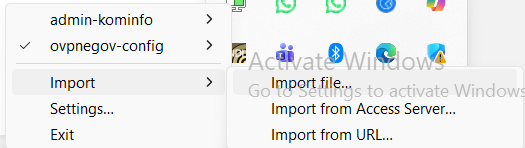
**5.3 Import File Sertifikat client1.ovpn pada OpenVPN GUI**
[](https://dokumen.baritotimurkab.go.id/uploads/images/gallery/2026-03/PU77fbbOIAGuwmb6-image.png)
**6. Connect VPN**
- Jalankan OpenVPN GUI
- Klik kanan → Connect
- Masukkan username & password secret PPP
**7. Verifikasi**
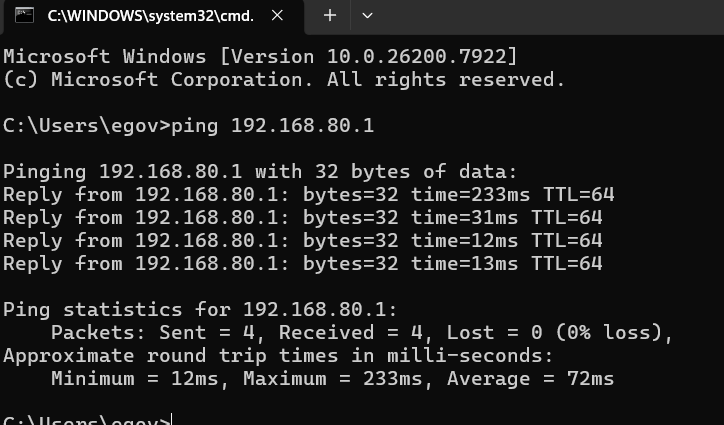
Uji koneksi ke 192.168.80.1
[](https://dokumen.baritotimurkab.go.id/uploads/images/gallery/2026-03/GbqunpFvTEezbsV1-image.png)